Steam Game Recording can retain gameplay footage according to the selected recording mode and storage settings. Find the footage in Recordings and Screenshots, select a useful range and save a clip before exporting a video file. A background recording buffer or timeline marker is not already a permanent MP4 you can assume will remain forever.
CASECS2Updated:
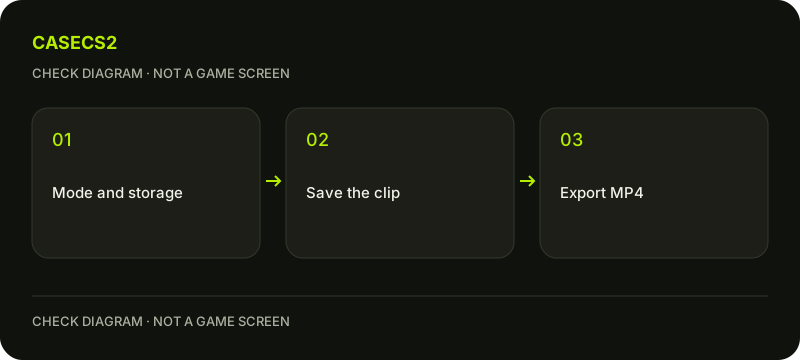
Separate recording, clipping and exporting
Stage
What you have
Next useful check
Background recording
Temporary gameplay footage
Save the wanted range
Saved clip
A selected section to retain
Review start, end and audio
Exported video
A local MP4 file
Open and inspect the actual file
For example, marking a memorable inspection moment helps locate it, but does not itself create a finished video. Do not confuse a marker with a screenshot either. The Steam screenshot guide covers still-image capture and locating those files independently.
A check diagram, not a game screen.
Choose the recording mode and storage
Open Steam Settings and inspect Game Recording. The current help describes Off, Background and On Demand modes. Choose the mode that matches your intended test rather than assuming recording is enabled merely because Steam is running.
Review the configured storage folder, disk limit, audio sources and shortcuts. This guide does not prescribe a universal bitrate or promise unchanged frame rate. For a first check, a short piece of your own gameplay is easier to inspect than a long session.
Protect the moment from buffer replacement
Background recording uses temporary storage and older footage can be overwritten. When a section matters, save a clip rather than assuming the entire recording history is permanent. Confirm the part you want while the footage is still available.
Steam documents Ctrl+F12 as a default marker shortcut, subject to customization. Read your actual recording shortcuts instead of treating a remembered key as proof that recording started. F12 screenshots are a different feature. If the shortcut instead opens another interface, the Overlay checklist helps keep those functions separate.
Find the footage and adjust the clip
Open Steam’s View menu and Recordings and Screenshots. Select the footage, use the clipping action and adjust the beginning and end to include the intended moment. Preview the range before saving it so that a useful action is not cut off at either boundary.
For an inspection comparison, include enough context to identify the item and viewing conditions. The consistent-lighting guide explains why a differently lit frame is not automatically a changed finish. Keep unrelated waiting time out of a concise comparison clip rather than publishing a whole session unnecessarily.
Export and inspect the real video file
Use the export-to-video-file action for the selected clip to produce an MP4. The recording’s raw storage and timeline are not the same thing as that exported file. Open the resulting local video and check that it contains the expected range.
Steam records game video rather than a general desktop video capture, but audio from other applications can be included depending on the selected sources. Listen before sharing: private conversations or notifications may be audible even when another program’s window is not visible. Exporting a file does not itself publish it or send a link to anyone.
Keep sharing as a separate decision
Decide whether the clip needs to leave your device only after reviewing it. Do not treat a website’s shared skin-planning snapshot as a Steam recording: they contain different information and use different storage workflows. An inventory-builder plan does not automatically retain your gameplay footage.
If the issue is recording behavior after a client change, use the dated-update checklist and note the actual mode, shortcuts and observed result. A short verified export is a useful completion check; it is not evidence that every past session is saved, backed up to Cloud or already ready for public distribution.
Sources checked on 2 November 2026. Menu locations and labels may vary with the client version and language; check your own current state before changing it.
Help
Questions and answers
What you should know before you begin.
Is a marker already a saved MP4?
No. A marker locates a moment; save the wanted clip and export a video file separately.
Will Background mode keep every old moment?
No. Older background footage can be overwritten, so save clips you intend to retain.
Can other applications be heard?
Depending on selected audio sources, other application audio can be included. Listen to the export before sharing.