How to capture a CS2 skin screenshot and find the local file
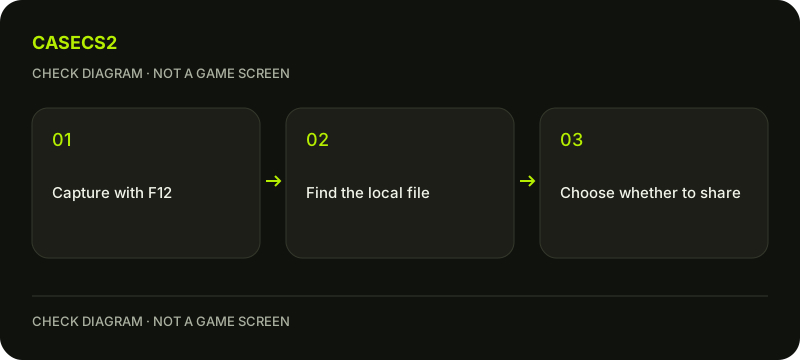
Steam’s default screenshot shortcut is F12, with the overlay enabled. After capturing the image, use View → Recordings & Screenshots to locate it and distinguish the local file from an uploaded copy. Ctrl+F12 marks a moment for Game Recording; it is not the same screenshot action. Check your configured shortcuts if the defaults differ.
CASECS2Updated:
Choose the output you actually want
For a private inspection image, identify the action before pressing a key combination.
Select the actual skin and the side you want to show. Keep a consistent angle, distance and lighting if you plan to compare it with another image. Avoid assuming that a thumbnail or someone else’s inspection represents your own item.
A simple example is one image of a weapon’s main visible side and a second of a detail you care about. Label the purpose privately instead of filling a folder with unexplained near-duplicates. The lighting comparison guide explains how mismatched conditions can obscure the difference you meant to record.
Check the overlay and screenshot binding
Steam’s support page describes global overlay settings and a separate per-game control. Confirm the relevant setting for CS2, then check the configured screenshot shortcut rather than assuming F12 has never been changed.
Use the screenshot action once and look for evidence that an image was captured. A marker is not a failed screenshot: it belongs to another workflow. If the overlay is unavailable, begin with the official overlay checks. Avoid random key combinations that create confusing duplicates.
Find the image through Steam
Open View → Recordings & Screenshots and locate the relevant capture by game and time. Check whether you are viewing a screenshot or recording material. Where Steam offers a way to reveal the local file, use that control rather than guessing a universal installation path.
Windows, Linux and different library arrangements need not share the same folder location. Do not publish a whole folder path as proof that everybody else’s image must be there. Verify the file you actually opened, including its contents, before attaching it to a message or adding it to a comparison.
Review visibility before sharing
A locally captured image and a published Steam Community image are different states. Choose sharing only when you intend it and inspect the visibility and destination presented by the current interface. Avoid blindly reusing old instructions about cloud quotas or social-network buttons.
Check the image itself for account information, messages or unrelated private content. The support-evidence guide helps decide what another person genuinely needs to see. Keeping a useful comparison private is a valid outcome; an image does not have to be public to serve its purpose.
Keep the evidence within its limits
Save a short label with the item name, view and capture date. A screenshot documents appearance under those conditions; it does not establish a missing float value, current market price or somebody else’s inventory ownership. Use the catalogue-versus-instance explanation when those distinctions matter.
For your next capture, repeat the same view and binding check. If the output is absent, record whether the screenshot or marker action was used and whether the overlay was enabled. That gives a concrete troubleshooting question without turning local capture into unnecessary public sharing.
Sources checked on 2 November 2026. Dated announcements explain rule changes; verify your item’s status and available actions in the current client.
Help
Questions and answers
What you should know before you begin.
Is Ctrl+F12 the screenshot shortcut?
Not in the cited default workflow: F12 captures a screenshot, while Ctrl+F12 adds a Game Recording marker. Check your own bindings.
Where should I look for the capture?
Open Steam’s View → Recordings & Screenshots, identify the image, then use an available local-file control. Do not assume one folder path works everywhere.
Must I upload a screenshot to keep it?
Local capture and publication are separate. Review the current visibility settings if you deliberately decide to share.