Clear Steam’s download cache only after preparing to sign in again
Steam’s built-in download-cache action can be a targeted step for download or start problems, but it requires signing into Steam again. Save your work and confirm legitimate access to the account and authenticator before using it. Installed games are not affected by this action; that does not mean the existing login session is preserved.
CASECS2Updated:
Decide whether this is the relevant cache
Problem or state
Relevant distinction
Do not substitute
Steam download or start problem
Download cache may be a targeted check
A promise of universal repair
Website page looks outdated
Browser and site behavior are separate
Steam download-cache clearing
Cloud version conflict
Data-version choice
Cache refresh as an overwrite decision
For example, a Steam update error and a stale website page are not the same symptom. Record the exact original message first. The update-error guide helps identify the selected library and stated reason before another diagnostic action is chosen.
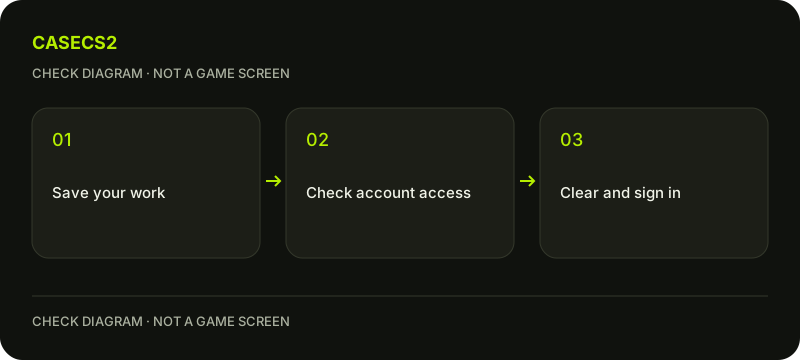
A check diagram, not a game screen.
Prepare for the required sign-in
Finish current activities and save your work before changing the client state. Confirm that you can legitimately sign into the intended Steam account and access any required authentication method. Do not discover a lost authenticator only after beginning a procedure that requires a new login.
If access is uncertain, address account recovery first. The authenticator recovery guide explains that separate task. A download problem is not a reason to provide credentials to a remote repair service or ask somebody else to handle the sign-in on your behalf.
Use Steam’s built-in command
Open Steam Settings, find Downloads and use Clear Download Cache. Read the confirmation in your current client before accepting. Labels can vary with language, so follow the function rather than a fixed screenshot position.
Do not manually remove app data, userdata, game configuration or Steam library folders as a substitute. Steam says installed games are not affected by this built-in action, but you must log into the client again. Keep those two facts together: preserving installed games is not a promise to preserve the active account session.
Sign back in through the legitimate route
After the cache action, complete the required Steam sign-in using your own account access. Check the account context before returning to the original download. The genuine Steam login guide is useful if an unexpected page or third-party helper asks you to authenticate elsewhere.
Do not publish screenshots that include authentication codes, recovery information or account secrets. If the login cannot be completed, stop and use official recovery rather than repeating cache clearing. Repeating the action does not replace the missing account-access prerequisite or repair an unavailable authenticator.
Repeat the same observation once
Return to the original download or start scenario and record whether the same message remains. Keep the library and relevant context comparable. If the error changes, preserve the new wording as a separate observation rather than simply marking the whole issue fixed.
This action is distinct from verifying installed game files and from resolving a Cloud conflict. Each answers a different question. Do not chain them together without checking the result of the one step you actually performed.
Stop before turning troubleshooting into deletion
If the symptom remains, retain the original error, cache-action result and one retry observation for support. Follow the limited-evidence checklist when sharing that record. Unknown folder removal is not the next automatic step.
A refreshed download cache does not grant items, restore a missing transfer, clear a VAC restriction or reset a Competitive cooldown. It also carries no FPS promise. The useful outcome is a documented comparison after a defined client action, including whether you successfully signed back in and whether the original problem actually changed.