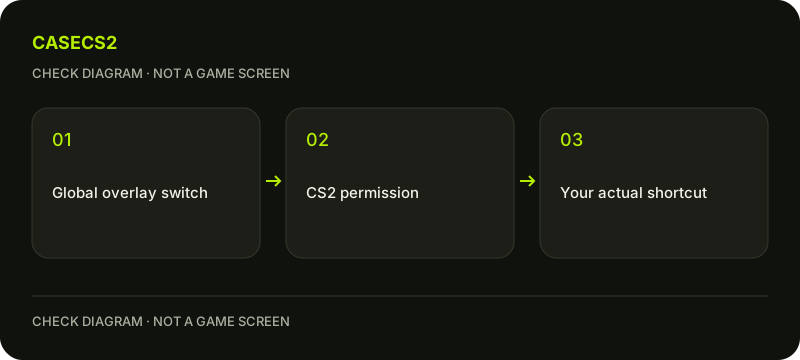
Check Steam’s global overlay setting, CS2’s per-game overlay setting and your actual shortcut before trying broader repairs. Shift + Tab is the documented default, but your binding may differ. Test from a CS2 session launched through the Steam Library and change one setting at a time so the result is interpretable.
CASECS2Updated:
Start with the three independent checks
Check
Where to look
What to record
Global overlay
Steam Settings, In Game
Whether overlay is enabled
CS2 overlay
Library, CS2 Properties, General
Per-game checkbox state
Shortcut
Steam Settings, In Game
Your current key combination
If the global option is enabled but the CS2 checkbox is off, changing the keyboard shortcut alone will not address that mismatch. Record all three before testing. The overlay is Steam’s in-game interface; a game console or an ordinary browser tab is a different surface.
A check diagram, not a game screen.
Enable the relevant Steam settings
Open Steam’s Settings and find In Game. Check the control that enables the overlay while in a game. Then open CS2’s Library Properties and inspect the overlay option under General. Steam documents both controls, so check both rather than treating them as duplicates.
Interface wording can vary by client language or update. Use the setting’s purpose to identify it. If you are unsure what changed after a client update, the dated-update checklist helps separate a new label from a genuinely missing feature.
Verify the binding before pressing it
Steam documents Shift + Tab as the default shortcut. Read your current binding in the In Game settings instead of assuming the default still applies. A customized combination should be tested as configured, including the modifier keys.
Launch CS2 from its Steam Library entry and test at a suitable menu where you can observe the result without interrupting a match. If you previously used an external shortcut, repeat through the Library for a clear comparison. Do not paste console commands merely because a shortcut failed.
Retest one change at a time
After correcting an identified setting, retest the same action. If necessary, save your work and restart Steam and the computer as Steam’s basic troubleshooting advises. Keep a note of whether the problem affects only CS2 or another game as well.
A local installation check is another official basic step when appropriate, but it is not a guaranteed fix for every overlay issue. Avoid changing several settings, reinstalling software and testing a different launch route all at once: you would lose the evidence of which change mattered.
Protect what the overlay may reveal
Before sharing a troubleshooting screenshot, review chats, account information and notifications visible in it. Crop or redact private content. Use the support-evidence checklist for a report that explains the failure without exposing credentials.
An overlay problem does not justify sending a weapon to another account or supplying a Steam API key. The genuine Steam login guide is relevant if a supposed repair page asks you to authenticate. Stop and verify the address rather than treating an unexpected form as part of the fix.
Move to a targeted next step
If all three checks are correct and restarting changes nothing, report the exact binding, setting states, launch route and observed behavior to official support. Do not disable a firewall or antivirus, delete game folders or install a third-party overlay fix just to complete a generic checklist.
For screenshots, separate opening the overlay from capturing and finding an image; a picture not appearing where expected is a different problem. For inventory concerns, consult the Steam and website inventory explanation. Restoring the overlay does not itself confirm delivery, change item restrictions or repair an account transaction.