Handle a Steam Cloud conflict without blindly choosing the newest copy
When Steam displays a Cloud conflict, local and Cloud versions differ and Steam cannot choose automatically. Compare the versions with your actual device and play history before deciding. Do not always pick the newest timestamp, and do not treat a Cloud-file choice as a way to restore CS2 inventory ownership or competitive rank.
CASECS2Updated:
Read the notice before selecting a version
What Steam shows
What to establish
Unsafe shortcut
Unable to synchronize
Why synchronization has not completed
Launch anyway without considering risk
Local and Cloud versions conflict
Which version matches the intended session
Always choose the newer timestamp
An item is missing from inventory
Actual account and transaction status
Restore ownership through a Cloud choice
Suppose you played offline on a laptop after using a desktop. Those sessions may have diverged. Start by writing down which device held the state you intended to keep, rather than interpreting one timestamp without its history.
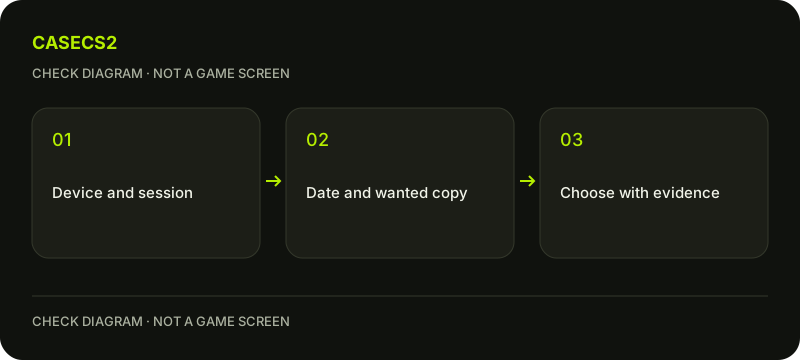
A check diagram, not a game screen.
Check what Cloud support means here
Steam Cloud coverage is decided by each game’s developer. Check the game’s Store support information and the current Cloud status in its Library entry. Do not assume that every CS2 setting, account record or cosmetic item is copied as a recoverable Cloud file.
The Steam versus website inventory explanation helps separate another common source of confusion. A website plan, a server-side inventory record and a synchronized local file are different things. Choosing a file version does not settle which account owns a weapon or whether a transfer completed.
Reconstruct the relevant sessions
Record the devices involved, the last sessions you remember and whether either was offline. Compare those facts with the displayed times. A later file can reflect an unwanted or incomplete state, so “newer” is not enough on its own.
If a second device is involved, identify what happened there before choosing an overwrite. Avoid launching repeatedly on both devices while trying to remember the sequence. The account identity checklist is useful if several Steam accounts share a computer: make sure the versions and the intended session concern the same account.
Preserve known data before committing
If you know the actual local files or settings involved, preserve known copies before deciding. Do not guess a folder path or delete userdata to make the warning disappear. This guide intentionally provides no speculative CS2 file list.
If you cannot identify which state matters, cancel or stop and gather the missing session information first. Steam warns that launching despite a synchronization problem can lead to loss of data or progress.
Treat the choice as your data decision
Once the intended version is supported by the session history, read the actual choice and its consequences carefully. Steam Support cannot reconstruct lost saves for you or decide which personal version you meant to retain. That makes preparation more valuable than a rushed click.
For an unrelated language mismatch, use the language settings guide rather than assuming a Cloud overwrite is necessary. For a local installation symptom, file verification checks installed content; it is not a substitute for choosing the correct personal data version.
Verify the result without conflating records
After a deliberate choice and completed synchronization, inspect the specific state you intended to preserve. Record what changed and leave unverified details unknown. Do not claim that a successful Cloud status means every game setting or server-side statistic was restored.
A saved inventory-builder plan also follows its own workflow and is not a Steam Cloud backup. Keep that plan separate from any game-file decision. If uncertainty remains, retain the narrow notice and device timeline for support rather than repeatedly overwriting versions or publishing full account logs.
Sources checked on 2 November 2026. Menu locations and labels may vary with the client version and language; check your own current state before changing it.
Help
Questions and answers
What you should know before you begin.
Should I always choose the newest timestamp?
No. Compare it with the actual device and session history to identify the state you intend to keep.
Does a synchronization error always mean a confirmed conflict?
No. Read the notice: failed synchronization and differing versions are related but distinct situations.
Can Cloud choice restore a missing skin?
Do not treat it that way. Inventory ownership and transfer status require account evidence, not a local-file choice.