Why Steam’s CS2 download speed looks smaller than your connection speed
First read the units: one byte contains eight bits, so a connection figure in megabits per second cannot be compared directly with megabytes per second. Then check whether Steam is transferring data, waiting or applying an update. A unit conversion explains a number; it does not guarantee that your download will reach the converted maximum.
CASECS2Updated:
Convert the units before diagnosing speed
Hypothetical label
Equivalent decimal unit
What it does not guarantee
100 Mb/s
12.5 MB/s
Actual download throughput
8 megabits
1 megabyte
An internet plan or route quality
A local network link speed
A separate connection property
Internet transfer at that speed
The example divides by eight because a byte has eight bits. It uses decimal units and is arithmetic only, not a benchmark. Read Steam’s actual unit label before deciding that a smaller-looking number means the connection is failing.
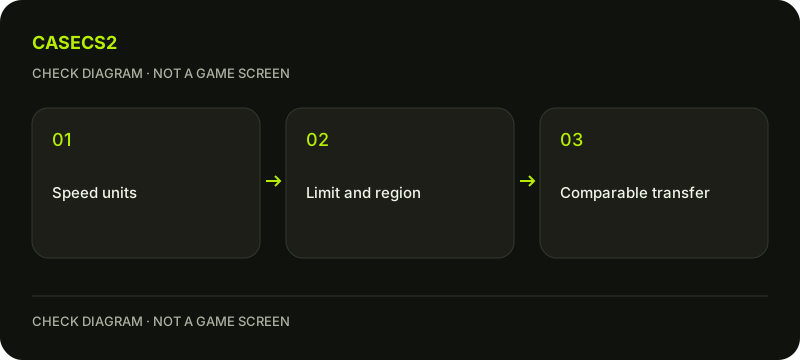
A check diagram, not a game screen.
Check the active transfer stage
Inspect the Download Manager and identify the selected CS2 task. A queued update, an active transfer and disk work applying downloaded content can show different network activity. A quiet network graph alone is not proof the client is broken.
Compare observations during the same active-file-transfer stage rather than comparing a patching moment with a previous download peak. For a real write error, the disk-write guide explains why the complete error message matters. Do not diagnose a drive failure from a speed number without an actual symptom.
Read the bandwidth limit in its current units
Steam can display download speeds in bits or bytes, so inspect the currently selected presentation. Check whether a bandwidth limit is enabled and interpret its value using those displayed units. A remembered number is not enough if the display preference changed.
Write down the original limit before adjusting anything. Respect a shared connection and other work on the network. Removing a limit does not promise the maximum speed from your internet plan: the route, content delivery and current workload still affect the result. Avoid changing several download controls at once.
Use a bounded content-region comparison
Steam’s Downloads settings let you inspect the content region. Start with the current or nearest appropriate region. If a comparison is warranted, try one nearby alternative, repeat a comparable active-transfer observation and retain the original choice for return.
This is a content-download setting, not a Store-country change or a way to bypass regional access conditions. The language settings explanation illustrates another interface choice that must not be confused with commercial eligibility. Do not turn a slow-download check into endless server switching or a VPN requirement.
Change one condition and keep the result
Record the units, task stage, limit and chosen content region together. After one change, observe the same kind of transfer. If the result is worse or inconclusive, return to the known original setting rather than accumulating speculative adjustments.
The download-cache guide describes a separate step that requires signing in again; it is not the automatic first action for every slow number. For a possible recent client change, use the update-review checklist to separate a dated observation from a general assumption.
Keep the conclusion proportional to the evidence
A useful result says which units were shown and whether the same transfer stage improved under one changed condition. It does not promise a fixed completion time, internet-plan maximum or better in-game ping and FPS. Download throughput and those game measurements are different questions.
If you need help, preserve the relevant Download Manager state using the support-evidence checklist. Do not disable firewalls, antivirus or router security to make a comparison look faster. An accurately described slow transfer is more useful than a peak number obtained under unrecorded conditions.
Sources checked on 2 November 2026. Labels and locations can vary by client version and language. Match the described action in your own current installation.
Help
Questions and answers
What you should know before you begin.
Why does 100 Mb/s not mean 100 MB/s?
A byte contains eight bits. In decimal units, 100 Mb/s converts arithmetically to 12.5 MB/s, not guaranteed throughput.
Does zero network activity always mean failure?
No. The task may be queued or performing disk work; inspect the current stage.
Does changing download region change Store country?
No. A content-region setting and commercial account-country settings are separate.