Verify CS2 game files in Steam and interpret the result
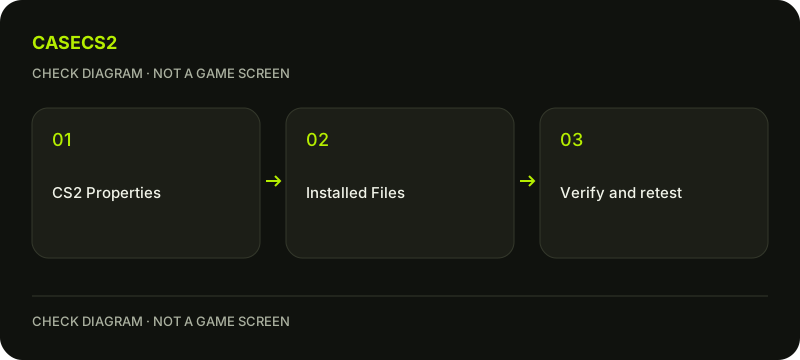
For a suspected installation problem, use Steam’s verification action on CS2: Library, game Properties, Installed Files, then Verify integrity of game files. Let it finish and test the same symptom again. This checks local game files; it is not a way to recover an account item or prove that a Steam trade completed.
CASECS2Updated:
Choose a repeatable symptom
Symptom
Useful observation
Verification can establish
Missing local texture
Same scene and object
Whether Steam finds installation differences
Crash at launch
Exact error and time
A local-file check, not a complete diagnosis
Missing owned item
Account and transaction status
Not ownership or delivery
Write down one reproducible problem before changing anything. If a screenshot merely differs in brightness, compare lighting conditions first. A visual difference caused by the scene is not automatically evidence of a damaged installation.
A check diagram, not a game screen.
Prepare without erasing settings
Steam’s basic instructions begin with restarting the computer and launching Steam. Save your work first. Record any custom settings you care about so that you can compare them after troubleshooting; verification is not a substitute for your own configuration backup.
Close the game and avoid running other demanding maintenance tasks during verification. Steam also advises against verifying several games at once. You do not need to delete userdata, remove configuration folders or download an unofficial repair program to reach the built-in verification action.
Use the Installed Files action
In the Steam Library, right-click Counter-Strike 2 or use its Library-page gear menu. Open Properties, select Installed Files and choose Verify integrity of game files. Localized wording may vary, so match the function rather than a screenshot’s exact coordinates.
Allow the operation to complete. Steam says it may take several minutes; do not treat a slower check as a reason to start another copy. Record the final message and any download or repair Steam reports before launching the game again.
Interpret the result with the symptom
Steam’s FAQ notes that one or more files can fail verification because local configuration files are not replaced, and that this is normal for many games. That explanation is useful context, not permission to ignore a persistent CS2 crash.
Test the same menu or inspection scene you recorded earlier. If the symptom continues, keep the actual result rather than repeatedly verifying without new information. Use the CS2 update checklist to distinguish a recently changed feature from a reproducible local failure.
Keep account items out of file repair
Steam inventory ownership and local installation files are separate. If the problem is an absent item, investigate the account and operation history instead of deleting local folders. The site inventory versus Steam guide explains the distinction.
For an item missing after a timeout, follow the record-checking approach. A successful file verification does not confirm a completed transfer, change a trade restriction or establish that a website has stock. Do not repeat a financial action to test a local texture issue.
Escalate with useful, limited evidence
If the same failure persists, gather the operating system, graphics hardware, exact error, approximate time and steps needed to reproduce it. State whether verification completed and what changed afterwards. Use official Steam Support for the next targeted step.
Follow the support evidence checklist before sharing screenshots or logs. Remove account secrets and private messages. Avoid broad experiments such as disabling security software or changing firmware settings on the strength of an unrelated guide; one controlled observation is more useful than an unrecorded bundle of changes.