Change CS2 language without confusing it with Steam Store preferences
First decide whether you want to change Steam’s interface, CS2’s language or Store recommendations. These are different settings. Steam documents a client language selection and language choices for supported games; changing a Store preference is not a universal way to translate a game or alter regional availability.
CASECS2Updated:
Choose the layer before changing it
What you want to change
Relevant setting
How to verify
Steam menus
Client Interface language
Restart and inspect Steam
CS2 text
Supported game-language choice
Reopen the game menu
Store recommendations
Store language preferences
Inspect recommendations separately
For example, selecting English recommendations in the Store does not prove that CS2’s menus changed. Record the intended result before touching another setting. The language of this website is also independent of Steam: switching an article to English does not configure the game on your computer.
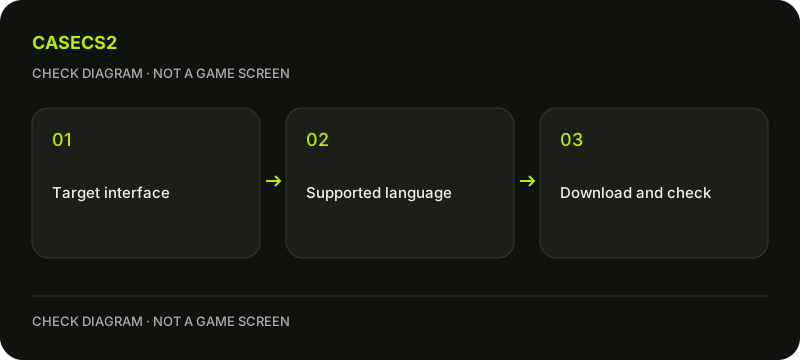
A check diagram, not a game screen.
Check the supported languages first
Review the game’s supported-language information on its Steam Store page. Do not assume that selecting a language means every voice, menu and community contribution will have an identical translation. Check the specific support information rather than extrapolating from the client’s language list.
Write down your current choice so that you can return to it. If you are comparing instructions with another person, agree on the function being discussed instead of matching a label character for character. The localized item-name guide explains a related distinction: a translated name does not create a different weapon finish.
Change Steam’s interface deliberately
Steam’s documented client route is Settings, Interface, then the language choice. Restart the client when required by that flow and inspect the menus afterwards. Valve games generally follow the Steam client language, so this is relevant when checking CS2’s current behavior.
Save work before restarting and note which setting you changed. Do not rename folders or append a collection of guessed launch flags. If the desired result is only inside one game, check whether its own Library Properties provide the appropriate supported language option before changing more of your desktop environment.
Inspect the game’s language choice
For games that support it, Steam exposes a language choice through the game’s Library Properties. The help article describes a Language tab; the current client may place the selector differently. Look for the language function rather than treating a screenshot’s coordinates as a fixed rule.
Allow any required language files to download before testing. Then launch CS2 again and inspect the same menu you recorded earlier. If the client changed but the game did not, preserve that observation. Consult the update-checking approach instead of combining instructions from different client versions.
Keep regional and account settings separate
A display-language change is not a Store-country change and does not expand supported payment methods. It also does not grant a game entitlement. The Prime and Premier explanation shows why a readable menu and access to a mode are separate questions.
Steam’s mobile app may have its own language setting; changing that app is not proof that desktop CS2 has changed. Likewise, website Steam authentication establishes a login flow, not the language or country configuration of your installed game.
Retest once and keep the return choice
After the change and any required download or restart, revisit the same game menu. Record what translated and what remained unchanged. If the result does not match your goal, return to the setting you actually changed rather than modifying several unrelated preferences.
For item comparisons across languages, retain the model, finish and variant alongside the display name. The skin comparison tool helps organize supported records without changing Steam settings. A clear before-and-after note makes it easier to follow future instructions while preserving a reliable route back to your preferred language.