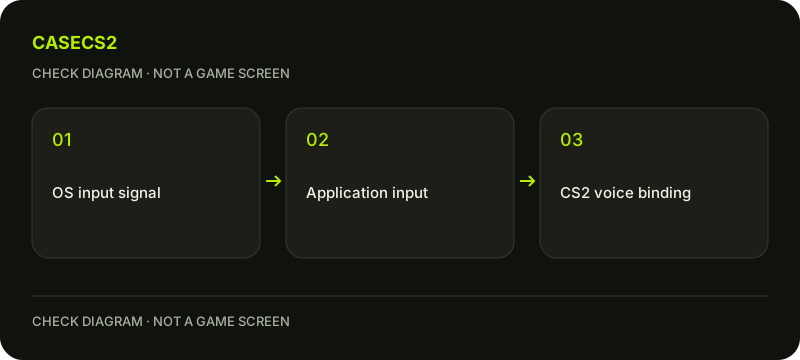
Start with the microphone connection and the operating system’s input indication, then check CS2’s own voice input and transmission binding. Steam Chat can be a separate comparison, but its settings do not automatically configure CS2. Locate the first failing stage before changing gain, permissions or network settings.
CASECS2Updated:
Use a three-stage check
Stage
What to observe
What it does not prove
Operating system
Input indication for the intended microphone
CS2 transmission is configured
Steam Chat, if tested
Correct device and chat behavior
Game voice uses the same settings
CS2
Current input and voice binding
Every application shares that configuration
Suppose Steam Chat works but teammates cannot hear you in CS2. That result narrows the investigation to the game context; it is not automatic evidence of a ban or broken hardware. Keep these observations as separate lines instead of writing only “the microphone works.”
A check diagram, not a game screen.
Check the physical and system input
Inspect the microphone cable or USB connection and confirm that the intended device is configured in the operating system. Observe the system’s input indication while speaking normally. If there is no input there, begin with that stage rather than compensating with game settings.
Check whether a headset has a physical mute control or another obvious connection issue. Avoid installing a downloaded microphone booster as a first step. Record the device name you intend to use so that a webcam microphone or another connected input does not silently become the reference for later tests.
Treat Steam Chat as an optional comparison
Steam’s Friends and Chat interface provides voice settings through its gear control. Check the selected input and output if you use that test. A Default device selection follows the operating-system default rather than proving that a specific headset was selected explicitly.
Input gain and transmission thresholds described for Steam Chat belong to that context. Do not assume that CS2 has identical controls or inherits those values. If you arrange a private test with somebody, do so with their agreement and avoid recording or publishing their voice merely to demonstrate a settings problem.
Inspect CS2’s own voice settings
Open the current game audio settings and identify the microphone input and voice-transmission behavior available there. Then inspect the current voice binding in the game’s controls. Use the function shown in your client instead of guessing a translated label or pasting an old console command.
Test from a suitable private context if needed, rather than interrupting a live match with repeated experiments. The Steam Overlay guide concerns another separate interface, not microphone input. Do not confuse a window shortcut with the game’s transmission key.
Change one condition and compare
If the wrong input is selected, correct that choice and repeat the same observation. If the binding differs from what you remembered, test the actual assignment. Avoid raising every gain control at once: that can obscure which stage failed and create an unpleasant level for listeners.
For a broader local game failure, the file verification guide covers a different diagnostic step. For recent behavior changes, use the dated-update checklist. Neither source replaces observing which microphone and binding the current game actually uses.
Prepare a narrow support report
A useful report lists the operating system, intended input device, system input result, optional Steam Chat result and the specific CS2 behavior. Follow the support-evidence checklist before sharing a screenshot. Exclude account secrets, private conversations and whole voice logs.
Do not disable protection software or change system-wide privacy permissions on the strength of an unrelated fix. Once the failing stage is known, continue with official support or the device’s relevant documentation. The account-login checklist concerns authentication; it cannot establish that a physical microphone was tested or repair its signal.