Investigate a CS2 Steam disk-write update error before deleting files
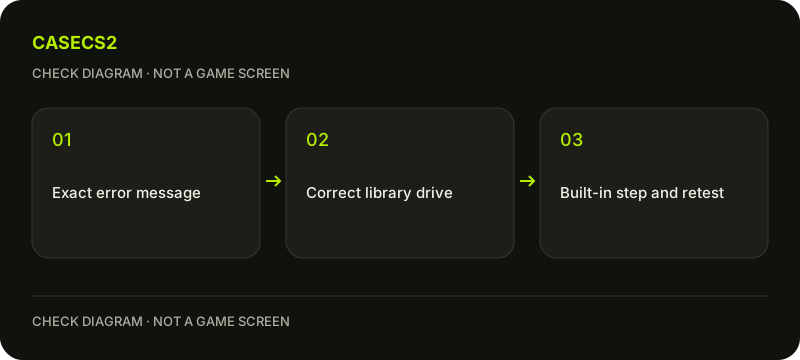
Read the full Steam update or installation message, including the reason in parentheses, before choosing a fix. For a disk-write symptom, identify the library drive and check available capacity and the library’s ability to accept writes. Do not start by deleting game folders or assuming every update failure has the same cause.
CASECS2Updated:
Preserve the exact error first
Observation
What to record
What not to assume
Disk-write error
Full message and selected library
Every update failure is identical
Limited available capacity
Actual drive and current free space
One fixed CS2 size fits every update
Repeated write errors elsewhere
Which applications and symptoms
Reinstalling the game fixes the drive
For example, free space on one drive does not explain the state of a Steam library stored on another. Identify the library used for the failing CS2 update before comparing numbers.
A check diagram, not a game screen.
Check the selected library and capacity
Inspect the Steam storage information for the library involved. Note its drive and available capacity. This article deliberately avoids a fixed number of gigabytes: installed content and an update’s temporary requirements are not a universal constant.
Pause unrelated heavy disk work while investigating, and avoid attempting a repair during a current match. Save your work before following Steam’s basic restart steps for the computer and client. A controlled restart followed by one update attempt gives a clearer observation than several overlapping downloads and maintenance tasks.
Use the built-in library repair when relevant
Steam explains that library folders must be writable for updates and that their permissions can sometimes need repair. In Steam Settings, Storage, locate the relevant library’s menu and its Repair Folder action where available. Follow the current client’s functional control rather than fixed screenshot coordinates.
Record whether that built-in action completes and what message it produces. Do not translate a permissions concern into a guessed administrator command, registry edit or instruction to disable security software. The purpose is to use the documented library mechanism on the identified location, not broaden access across the computer.
Retest the update before another procedure
After the targeted step, repeat the update and record the new result. If the message changes, preserve both versions with their observation times. Do not claim that a completed repair proves the entire update succeeded until Steam actually finishes it.
When CS2 is installed and a local-content symptom remains, file verification is a separate appropriate check. That guide is not an instruction to verify several games simultaneously or delete configurations first. Likewise, the update-review checklist helps keep the timing of a game change separate from the reason in a local installation error.
Keep account records out of disk repair
A missing weapon or pending delivery is not diagnosed by an installation error on a local drive. Use the Steam and website inventory explanation for those records. Re-downloading files does not establish that a transfer completed or that an account owns a particular item.
Do not repeat an item operation simply because an update repair did not change an inventory view. For a timeout-related absence, the record-checking guide gives the relevant evidence sequence. Keep the local update and account-operation timelines separate in your notes.
Escalate persistent write symptoms with evidence
If errors persist, gather the exact message, affected library, observed capacity and results of the built-in steps. Repeated write failures across applications may need qualified storage or system support rather than another game reinstall. No guaranteed hardware diagnosis follows from one Steam message.
Follow the support-evidence checklist before sharing screenshots or logs. Do not format a drive, remove userdata, uninstall Steam or run an unknown cleanup script to obtain a tidier result. The useful endpoint is a specific reproducible symptom and a bounded record of what was checked, with personal account details excluded.
A separate next step is clearing Steam’s download cache. It requires signing in again, so confirm access to your own account first.
Sources checked on 2 November 2026. Menu locations and labels may vary with the client version and language; check your own current state before changing it.
Help
Questions and answers
What you should know before you begin.
How much free space does a CS2 update need?
There is no universal fixed amount given here. Check the actual selected drive, update and available capacity.
Should I delete the game folder first?
No. Start with the exact message and targeted built-in checks rather than deleting data.
Does a repaired library prove delivery completed?
No. Local installation status and account item-transfer status are separate records.