Enable and open the CS2 developer console without command packs
Enable the developer console in CS2’s Game settings, then use the console binding configured for your keyboard. The tilde key is the documented example for an English or US layout, not a universal instruction for every keyboard. Opening the interface does not require a downloaded configuration or a collection of launch options.
CASECS2Updated:
Identify the interface you need
Your goal
Relevant interface
What to check
Open a command text window
CS2 developer console
Console setting and binding
Open Steam inside the game
Steam Overlay
Steam switches and shortcut
Import a crosshair code
Crosshair settings
The game’s import action
Suppose a tutorial says to open the console but you see Steam’s friends interface instead. That is a different window, so typing more keys will not resolve the mismatch. Start by naming the task. The Steam Overlay checklist covers that interface independently, including its global and per-game switches.
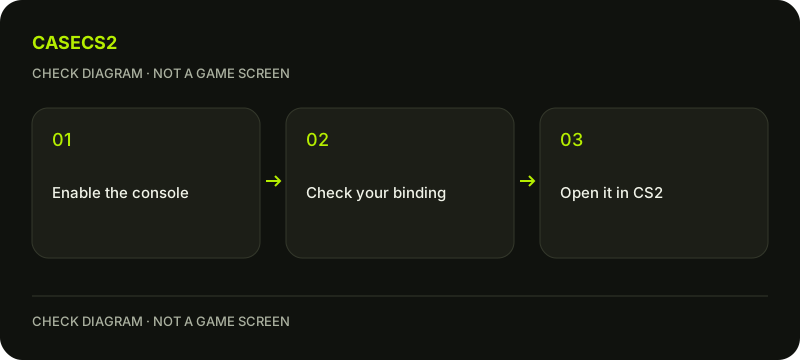
A check diagram, not a game screen.
Enable the console in the game settings
Launch Steam and CS2, then open the main-menu settings using the gear control. In the Game tab, find the Game section and set Enable Developer Console to Yes. This is the route documented by Steam’s CS2 console help.
Read the setting in your current client rather than relying on the position shown in an old screenshot. A localized label may look different while referring to the same function. Keep your other settings unchanged during this check so that you can tell which adjustment made the console available.
Use the binding for your keyboard
Steam’s example uses the tilde key on an English or US keyboard. On another layout, do not assume that the physical key or printed symbol is identical. Inspect the current console action in the Keyboard/Mouse bindings and use its assigned key.
If you change the assignment, record the old value first. Return to the same menu and test the configured binding once. A key that activates another feature is evidence to review the assignment, not a reason to paste commands into a different application or switch unrelated operating-system settings.
Open, recognize and close the window
The console is a text interface for executing game commands and settings. For the limited task of enabling and opening it, no command needs to be entered. Once the window appears, identify its text area and then use its current close action or configured binding to return to the menu.
If your real goal was a crosshair change, follow the crosshair-code import guide instead of treating every shared code as a console command. Opening a console does not automatically import that code or apply another player’s configuration.
Avoid unrelated configuration changes
A guide to opening the console does not need cheat settings, disabled protections or an unknown configuration archive. Do not run a command pack merely to prove the window works. First understand what a particular command would change and whether it applies to your current version.
Use the official-update review checklist when an older tutorial references a removed or renamed option. If the issue is actually a damaged installation or failure to launch, use the local-file verification guide; those problems are distinct from a console binding.
Keep a small record of the result
A useful completion note contains the console setting, the binding used and whether the window opened. There is no need to publish a whole console log. It may include unrelated session details that do not help somebody understand your key-binding problem.
If you need assistance, share the narrow symptom and the steps you tried, following the support-evidence checklist. Enabling this interface is not a performance guarantee, an account repair or a change to item ownership. Stop once the original opening-and-closing task works, then address any separate setting deliberately.