CS2 is already running but no window appears: check before relaunching
Steam’s app-already-running message can follow an improperly closed game or a silent crash that leaves a process active. First check for an existing usable window and allow a normal exit. If the game is genuinely hung, identify the correct game process before considering an end-task action; do not terminate unrelated processes.
CASECS2Updated:
Identify what is actually still running
Observation
First check
Avoid doing immediately
A usable CS2 window exists
Whether a session is active
Ending a live match
The game has just closed
Whether normal exit finishes
Repeatedly pressing Play
No window, process remains
Whether it is the correct hung game
Killing unrelated applications
For example, a window behind another application is not the same situation as a silent crash. Inspect that distinction before taking an action that could lose progress. The message alone also does not prove that somebody else has compromised the account.
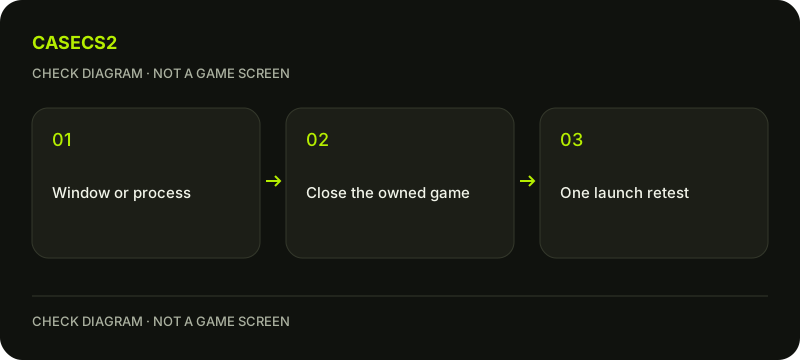
A check diagram, not a game screen.
Allow a normal exit first
Check existing windows and the game state in Steam. If the game is responsive, leave through its normal controls after finishing the current activity. Save other work before moving to a broader restart. Do not interpret a brief closing transition as proof that the process must be forced to stop.
If other people use the computer through another operating-system session, a running application there may matter. Do not end another user’s work without permission. Establish which session owns the activity and let that person save work before a restart or another action affecting the computer.
Identify a hung process carefully on Windows
Steam’s Windows guidance uses Task Manager, which can be opened with Ctrl+Shift+Esc. Inspect the description and context of the game process rather than choosing an unfamiliar entry merely because it consumes resources. This guide does not supply a guessed executable path or a broad termination command.
If the process is confirmed as hung CS2 and ending it is necessary, understand that unsaved work can be lost. End only that identified game process. Do not terminate security software or unrelated Steam components in a batch. If you cannot identify the correct process confidently, stop rather than experimenting.
Use a saved-work restart when uncertain
When the process or session state remains unclear, save work across the relevant sessions before restarting the computer. This is a controlled way to clear a stale local state, not a promise to fix every launch problem.
After the restart, launch CS2 once from its Steam Library entry and inspect the result. If a real local-content symptom remains, the file verification guide covers a separate check. Do not delete configuration folders or reinstall the client simply because the first error referred to an application still running.
Test a familiar scene before a match
Use a familiar menu or other suitable local observation to check whether the game now opens and exits normally. Do not immediately use a competitive match to test an unresolved launch or closing problem. The cooldown guide explains why a technical disruption and an already issued restriction are separate matters.
If copied startup settings preceded the symptom, use the launch-options comparison as its own later test. Changing several conditions during the relaunch would make it harder to tell whether a stale process was the relevant cause.
Record the exact result for support
Keep the error wording, observation time, whether a window existed and what happened after one controlled restart or process action. The support-evidence checklist helps share the relevant state without exposing unrelated account details.
A Steam client error is not necessarily captured by an in-game screenshot key. Preserve the actual notice using an appropriate local capture method if needed. For account uncertainty, use the identity checklist; do not infer an account attack or a restriction reset from this local process message alone.
For a different exact error, use CS2 Missing Executable checks; a hanging process and a missing file are different causes.
Sources checked on 2 November 2026. Labels and locations can vary by client version and language. Match the described action in your own current installation.
Help
Questions and answers
What you should know before you begin.
Does the message mean my account was hacked?
Not by itself. A stale or hung local game process can produce this state.
Should I end every Steam-related process?
No. Identify the correct hung game process and avoid ending unrelated work.
Will relaunching remove a Competitive cooldown?
No. Local process troubleshooting and account restrictions are different systems.