Steam shows Install for CS2 even though files exist
If CS2’s Library entry shows Install despite existing files, first confirm the correct account, library and available drive. Steam can discover correctly located files when installation is directed to that same library. Detection may still download missing or outdated content, so do not promise a zero-byte repair or move unknown folders by hand.
CASECS2Updated:
Classify what is missing
Observation
First distinction
Avoid immediately
No visible game entry
Account, filters or hidden state
Reinstalling into a random folder
Entry shows Install
Existing library and file location
Assuming every file was deleted
Previous drive is unavailable
Correct drive connection
Creating a duplicate installation elsewhere
For example, a disconnected external library and a hidden Library entry are different situations. The private versus hidden guide explains one visibility distinction. Start with the actual state rather than calling all of them “uninstalled.”
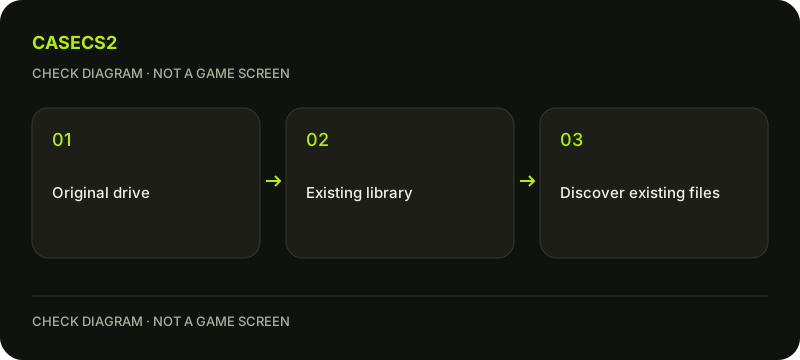
A check diagram, not a game screen.
Confirm the account and the known library
Check that the current Steam account is the one you intended to use. Then identify the library where CS2 was previously installed. If its drive is disconnected, reconnect it safely before creating another installation elsewhere.
Use the account identity checklist if familiar nicknames or avatars cause uncertainty. A folder on disk does not establish Prime status or the ownership of a skin. For account items, consult the inventory-status explanation rather than using installation files as proof.
Reconnect the existing Steam library
Use Steam’s current Storage controls to add or recognize the known alternative library when appropriate. Older help may describe Library Folders under Downloads; identify the current library-management function rather than guessing a universal drive path.
Confirm that the selected location is the existing library you meant to reconnect. Do not create several similarly named folders while trying to remember the old one. If you are genuinely moving an installed game on the same computer, the Storage Move guide covers that different operation; this page concerns recognition of existing files.
Allow detection in the correct location
When the files are properly located, attempting installation into the same existing library allows Steam to discover them during installation. Read the selected destination and current space requirement before confirming. The client may need missing or updated data even when much of the content is already present.
Do not promise that discovery means no download, and do not manually merge game directories to force it. Preserve known important custom settings through your own appropriate record before further recovery work. A Cloud status does not guarantee every configuration has a recoverable copy.
Observe completion before testing the game
Let the detection, installation or required update finish. Record whether Steam recognizes the game and what it reports afterwards. Shut the client down properly rather than forcing it to close in the middle of writes.
If a write error appears, keep the full message and use the disk-write checklist. If recognition still fails, follow the official next steps with known data preserved; do not delete random directories or edit guessed installation manifests. A fresh reinstall may become relevant, but it is not justification to erase unknown files first.
Keep the result tied to the original observation
After completion, launch the same Library entry and inspect a familiar menu. Record the recognized library, any additional download and the launch result. This is narrower than claiming that every custom setting, server-side record or account entitlement was restored.
If the original issue was simply a hidden or filtered entry, explain that outcome rather than presenting a data-recovery success. If uncertainty remains, retain the exact message and location context for official support. The useful endpoint is a recognized installation or a clear remaining error, not an unsupported claim that files on disk prove everything about the account.
Sources checked on 2 November 2026. Labels and locations can vary by client version and language. Match the described action in your own current installation.
Help
Questions and answers
What you should know before you begin.
Does Install prove all files vanished?
No. Steam may not recognize existing files or the relevant library.
Can recognition still download data?
Yes. Missing or outdated content may still need to be downloaded.
Should I manually merge folders?
No. Confirm the correct existing library and use Steam’s recognition workflow rather than guessing file operations.