Steam buy orders: find, cancel and check a missing order
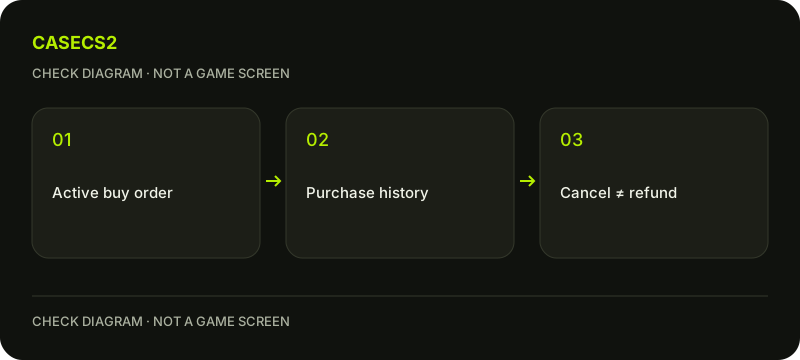
Look for an active buy order on the Steam Community Market home page. If it is missing, check Market transaction history before assuming that it was cancelled: an order can also disappear after execution. Cancelling an unfilled request and reversing a completed purchase are different actions. Use the actual account records to establish which state applies.
CASECS2Updated:
Identify the state before clicking again
Suppose a request for a commodity item no longer appears where you expected. The missing row alone does not tell you what happened.
Observation
Next record to check
Avoid assuming
Order still active
Its quantity and price
A purchase already happened
Order absent
Completed Market transaction history
It was definitely cancelled
System cancellation
Current account or balance notice
Immediate retry fixes every cause
Completed purchase
Transaction details
Cancelling another order refunds it
The item-value guide helps distinguish an offered amount from a completed transaction.
A check diagram, not a game screen.
Review the active request
Use the Market home page on the intended Steam account. Check the item, quantity and maximum price shown for the order you want to manage. Read all three together: a familiar item name does not establish the remaining quantity.
Steam describes the buy-order price as a ceiling; a suitable cheaper item can be purchased for less. Keep that distinct from a guarantee about when a seller will appear. Your personal note should record the submitted conditions, not an assumed future purchase or a predicted saving.
Cancel only the request you mean to stop
If the order is active and you no longer want it, use its cancellation control from the active-order list. Check the resulting state rather than immediately creating a replacement. If the row disappeared before your action, inspect history first.
The FAQ describes completed Market purchases as final. Cancellation of an unfilled order is therefore not a general refund mechanism. If you are unsure what executed, preserve the transaction reference and review it. A second request can add confusion instead of resolving the first request’s outcome.
Do not confuse listings with order filters
Valve’s May 2026 Market update added listing-specific images and fields such as float, pattern and accessories. It is outdated to claim that Steam always shows only generic pictures or never exposes those details. Review the fields actually available on the listing.
That does not establish that an ordinary buy order includes a filter for your desired float or seed. The individual-float guide explains why instance details matter; the exact-name checklist helps verify the item being requested without inventing extra order controls.
Read automatic cancellation notices narrowly
The FAQ lists possible balance, account, item and execution issues that can cancel an order. Those are possible categories, not a diagnosis of your missing row. Check the actual notice and your completed Market transaction history before assigning a cause.
The oldest matching buy order is selected when several could satisfy a listing under the cited FAQ; do not rely on an older highest-price-first explanation. Even so, age alone does not promise execution. Avoid increasing limits merely to test an assumption about priority.
Keep account systems and outcomes separate
Record the item, quantity, price ceiling and observed state. If still unresolved, describe which record you checked and which fact remains unknown. This is more useful than labelling every disappearance a failed payment.
A Steam Market buy order funded from your Wallet is separate from a CaseCS2 balance or withdrawal. The inventory-system explanation helps keep those contexts apart. Finish by confirming active, cancelled or executed status from the relevant records rather than treating another interface’s balance as proof.