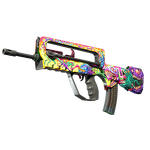
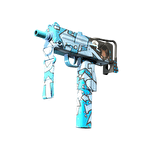
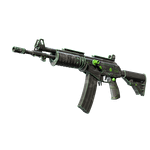
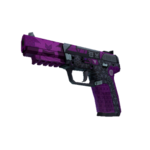
Blue and purple markers in CASECS2
Our matrix uses #4b69ff for Mil-Spec, including the Mil-Spec Grade alias, and #8847ff for Restricted. Their Russian labels are 'Армейское качество' and 'Запрещённое'. These markers identify a card's category. They do not measure surface cleanliness, float or suitability for your inventory. Retain the category as text, especially when your display makes neighboring shades difficult to distinguish. The marker describes classification rather than visual quality.
Do not merge item types sharing colors
Blue or purple strips can occur on other item types with different category names. Confirm that the object is a weapon finish before interpreting the grade. Do not call a standalone sticker Restricted solely because the colors match. Keep object type and written category together. This matters in general search results where weapons, stickers and containers may appear beside one another. A color-only grouping discards the information needed to distinguish them.
Compare finishes for the actual goal
For a restrained playing set, shortlist appealing designs independently of the administrative strip's brightness. Then check each model, variant and exterior. If the goal is a particular grade, verify Mil-Spec or Restricted for every record instead of only the first card in a group. Sharing rarity cannot make different finishes visually similar. Keep separate category and palette records when working toward both classification and a coordinated appearance.
Read the two interface labels
| Text | Russian label | CASECS2 color |
|---|---|---|
| Mil-Spec | Армейское качество | #4b69ff |
| Restricted | Запрещённое | #8847ff |
This table does not establish drop percentages: it documents category display rather than a case's contents. Preserve the full item name when requesting clarification. See Classified and Covert for other labels. Find the design in the finder, then verify its category through the card.