


Mouse settings
CS2 eDPI calculator: compare DPI and sensitivity correctly
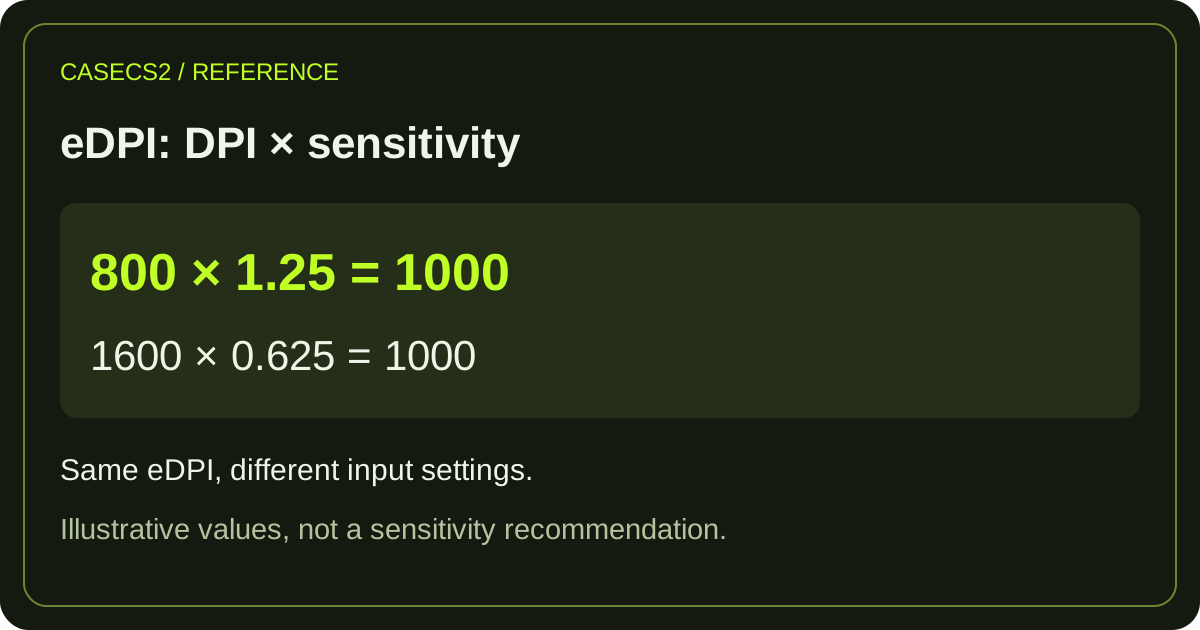
For this calculator, eDPI equals mouse DPI multiplied by in-game sensitivity. It helps compare two input settings in the same calculation model. It does not measure your aim, input latency or every part of the game's sensitivity behavior.
CaseCS2 editorial content, prepared with AI assistance
Published:
Updated:
Key points
- eDPI = mouse DPI × in-game sensitivity in this model.
- 800 × 1.5 and 1600 × 0.75 both equal 1200.
- Check decimals, active profiles and the limits of zoom or cross-game comparisons.
eDPI calculator
Enter DPI and CS2 sensitivity. Calculation stays in your browser.
Calculate to see the result.
eDPI = DPI × sensitivity. This does not identify an ideal setting or convert between games.
Record both settings before changing anything
Write down the mouse profile’s DPI and the game’s current sensitivity. Confirm that the active mouse profile is the one you intended, especially if a DPI button can switch profiles. Use the displayed game value rather than a number copied from an old screenshot. Keep both original settings so you can return to them. Changing mouse DPI, game sensitivity and another input setting together makes it difficult to identify which change produced the difference you feel.
The official Logitech G102 instructions distinguish DPI settings by mode and profile. This is a model-specific example: use your own mouse's manual rather than assuming its DPI limits or menu names apply to every device.
Calculate the product with its inputs
Multiply the two entered values. At 800 DPI and sensitivity 1.5, the result is 1200 eDPI: 800 × 1.5 = 1200. Keep the input pair next to the product. The result alone cannot tell you whether it came from that pair or a different combination. This is a numerical comparison within the stated model, not a recommendation that every player should use 1200. Personal comfort and a repeatable check matter more than treating someone else’s product as a universal target.
Worked change: double DPI and halve sensitivity
Suppose you want to test 1600 DPI while preserving the example product. Divide 1200 by 1600 to obtain sensitivity 0.75. The check is 1600 × 0.75 = 1200. Save the original pair before testing the new one. After entering it, inspect the active mouse profile and the game value again. Matching the product is a useful starting comparison under consistent conditions; it does not guarantee identical behavior across different games, devices, software processing or every viewing mode. If you choose to enter the example through the CS2 console, the command is sensitivity 0.75. The command name stays in English and the decimal uses a period. It changes the game sensitivity value, not the mouse's hardware DPI. Record your original value before changing it and check the setting afterward. You can use the game's settings interface instead if you do not want to use the console.
Check decimals and reject meaningless inputs
In these English examples, 1.5 and 0.75 use a decimal point. Read back what the form actually accepted, particularly if your browser or keyboard normally uses a decimal comma. A misplaced decimal changes the calculation substantially: 0.75 and 7.5 are different inputs. Zero DPI or zero sensitivity cannot represent a useful matched aiming setup, even though multiplying by zero produces a mathematical result. Clear an accidental value and supply meaningful positive settings. A blank field is missing information, not a reason to invent a default as your actual configuration. As a simple error check, 1600 × 7.5 would produce 12000, ten times the intended example result. A surprisingly large output is a reason to inspect the input before changing more settings. Keep the original pair available so you can distinguish a misplaced decimal from an actual preference after testing.
Keep zoom and other games outside this shortcut
Do not treat the product as a complete explanation of scoped or zoom behavior. Those questions need their own settings and context. Likewise, an equal number from another game does not by itself establish an equivalent turn distance or feel. If you are checking an unusual view, record the view and relevant settings separately. The value is most useful when the comparison question stays narrow: how two DPI and base sensitivity pairs relate under the same stated arithmetic.
Test the input chain one change at a time
The mouse profile, any relevant software processing and the game settings form the path you are testing. Keep unrelated settings stable while you compare. Use a consistent practice situation and note your observation without claiming that a calculator measured it. A delay, stutter or inconsistent frame delivery is a different troubleshooting problem; it is not diagnosed by a higher or lower eDPI. If the result feels unexpected, first recheck the active inputs and restore the recorded baseline before making another change. A repeatable note can contain four entries: the active DPI profile, the game sensitivity, the calculated product and the situation you tested. Note any scoped view separately. Repeat the same situation before judging a difference; the calculator does not observe what happened in the game.
Next step: reproduce the example in the existing calculator
Open the CS2 eDPI calculator and reproduce 800 × 1.5 and 1600 × 0.75. Compare the output with your manual arithmetic, then enter your own verified settings. The calculator does not require a paid action or a Steam inventory. Keep a short note containing the original pair, test pair, calculated product and what you observed in a consistent test. That is a reproducible settings comparison, without a promise of better aim or a recommendation based on an unmeasured performance claim.